| contrib/vscode | ||
| legacy | ||
| src | ||
| .gitignore | ||
| Cargo.lock | ||
| Cargo.toml | ||
| LICENSE | ||
| Makefile | ||
| README.md | ||
| sc_build.toml | ||

sc_build_dll
Automated Sierra Chart Study Compilation Engine for Linux Environments.
sc_build_dll is a high-performance Rust-based tool designed to streamline the development of Sierra Chart studies on Linux. It orchestrates the cross-compilation of ACSIL C++ source files into 64-bit Windows DLLs and handles the deployment and reloading process within Sierra Chart.
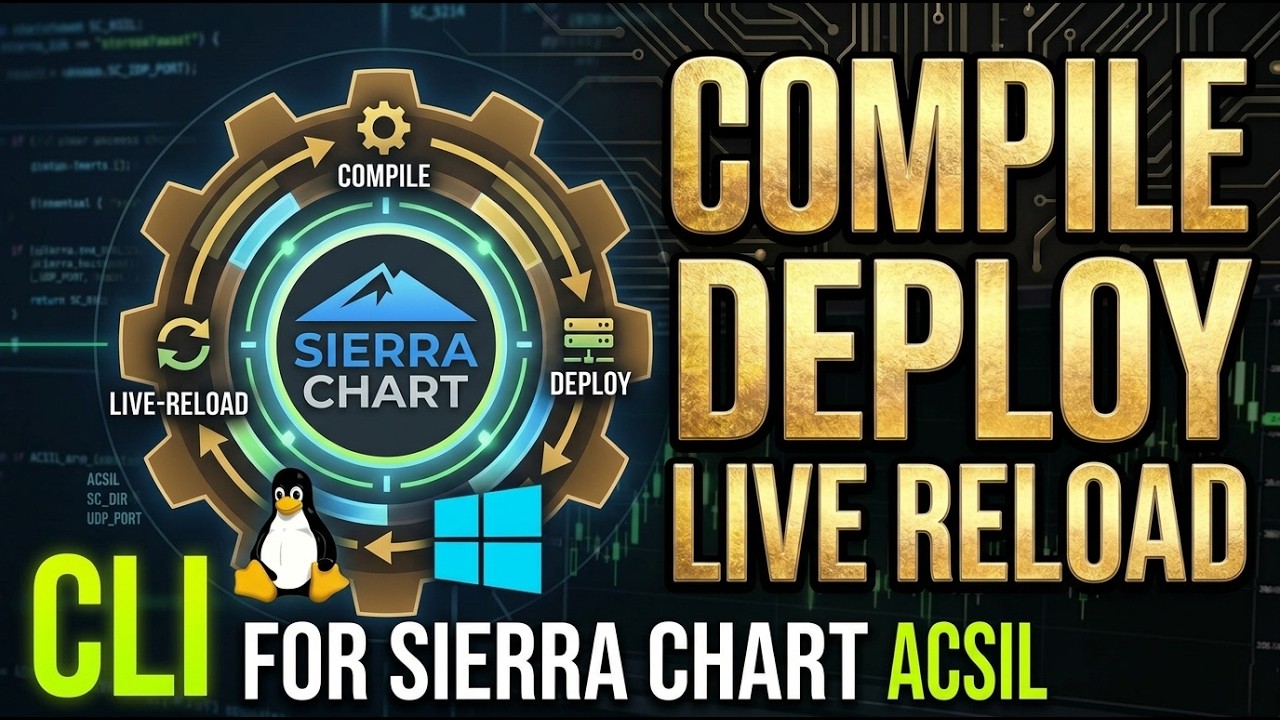
▶️ Click the image to watch the video demonstration
Background & Legacy Support
sc_build_dll is the official Rust-based successor to the original sc_build_dll.bash script. While the Bash version served me well for years, this Rust implementation is a direct upgrade that provides:
- Better Configuration: Profile-based management instead of hardcoded paths.
- Improved Robustness: Superior error handling and pre-deployment lock verification.
- Zero Dependencies: Compiles to a standalone binary (excluding the MinGW toolchain).
The original script is still available in the legacy/ directory for historical reference or specialized use cases.
Key Features
- Cross-Compilation: Uses MinGW-w64 to compile Windows DLLs directly from Linux.
- Cross-Platform Compatibility: Natively compiles on Windows systems using local GCC/MinGW-w64, maintaining identical command-line and configuration functionality.
- Profile Management: Support for multiple environment profiles (Sierra Chart installations) via a simple TOML configuration.
- Automated Deployment: Automatically copies the compiled DLL to your Sierra Chart
Datadirectory. - Hot-Reloading: Communicates with Sierra Chart via UDP to release the file lock and trigger an immediate reload of the study.
- Smart Retries: Waits for Sierra Chart to release file locks before attempting deployment.
Prerequisites
- Rust & Cargo: Installed via rustup.rs (or your system's package manager).
- C++ Compiler (GCC/g++):
- For Linux Users (Primary):
x86_64-w64-mingw32-g++cross-compiler.- On Arch based Linux distros:
sudo pacman -S mingw-w64-gcc - On Ubuntu/Debian:
sudo apt install g++-mingw-w64-x86-64
- On Arch based Linux distros:
- For Windows Users (Secondary):
g++local compiler added to your systemPATH. Installation options:- Scoop (Recommended / Cleanest): Run
scoop install mingwin PowerShell (automatically configures yourPATH). - WinLibs (Easiest Standalone ZIP): Download the lightweight compiler ZIP from winlibs.com and manually add the extracted
bin/folder to your System environment variablePATH. - MSYS2 (Full Shell Environment): Install MSYS2 from msys2.org, run
pacman -S mingw-w64-ucrt-x86_64-gccin the UCRT64 terminal, and addC:\msys64\ucrt64\binto your systemPATH.
- Scoop (Recommended / Cleanest): Run
- For macOS Users (Untested): It should theoretically work using a cross-compiler (e.g.,
mingw-w64installed via Homebrew:brew install mingw-w64) if you are running Sierra Chart under Wine, but I have not tested this setup. Feedback is welcome!
- For Linux Users (Primary):
- Sierra Chart: Running with the UDP server enabled.
Installation
Pre-compiled Binaries (Recommended)
If you do not want to compile the tool from source, you can download pre-compiled static binaries directly from the Releases page.
The latest release and its compiled assets (supporting both Linux and Windows) will always be displayed at the very top of that page.
From Source
git clone https://git.thelonestack.com/thelonestack/sc_build_dll_rust.git
cd sc_build_dll_rust
make install
This will build the release binary and install it to ~/.local/bin/sc_build_dll. It also sets up a default configuration file in ~/.config/sc_build_dll/sc_build.toml.
Configuration
The tool searches for sc_build.toml in the current directory first, then in ~/.config/sc_build_dll/.
Example sc_build.toml
# Linux Profile Example:
[profiles.dev]
sc_dir = "/home/user/.cxoffice/SierraChart_DEV/drive_c/SierraChart"
udp_port = 8889
cxx_flags = "-w -s -O2"

# Windows Profile Example (uses single quotes to avoid escaping backslashes):
[profiles.win]
sc_dir = 'C:\SierraChart'
udp_port = 8890
cxx_flags = "-O2 -s -Wno-deprecated"
sc_dir: The root directory of your Sierra Chart installation (absolute Linux path, or Windows path like'C:\SierraChart'). Note: on Windows, use single quotes (') to avoid having to double-escape backslashes.udp_port: The UDP port configured in Sierra Chart under Global Settings >> Remote Chart Control/UDP Port.cxx_flags: Compiler configuration flags. If defined, these flags completely customize the release compilation behavior. The recommended default is"-O2 -s -Wno-deprecated". In debug mode (via the--debugflag), these flags are still processed, but any strip flags (-s) are automatically filtered out and optimization levels are overridden by-O0to preserve debugging symbols.
Usage
Basic compilation and deployment:
sc_build_dll MyStudy.cpp
Using a specific profile:
sc_build_dll --profile real MyStudy.cpp
Debug build (includes -g, disables aggressive optimizations, and enforces frame pointers):
sc_build_dll --debug MyStudy.cpp
Verbose output (useful for troubleshooting):
sc_build_dll --verbose MyStudy.cpp
Native Windows Support (Optional)
Although sc_build_dll is primarily designed to simplify compilation workflows in Linux-to-Wine environments, it works natively on Windows.
When running on Windows:
- The tool automatically resolves compiler execution to
g++instead of the cross-compiler. - In your
sc_build.tomlconfiguration, use single quotes (') for Windows folder paths to avoid needing double backslashes. For example:[profiles.dev] sc_dir = 'C:\SierraChart' udp_port = 8889
How it Works
- Configuration Loading: Reads the specified profile from
sc_build.toml. - MinGW Compilation: Invokes the compiler (e.g.,
g++) with mandatory Sierra Chart flags (following the official recommended flags from Sierra Chart Support Board Post ID 403507) and include paths forACS_Source. - Unlock Command: Sends a
RELEASE_DLLcommand via UDP to Sierra Chart. - Lock Verification: Polls the target file path in the Sierra Chart
Datadirectory until it is writable. - Deployment: Copies the freshly compiled
*_64.dllto theDatadirectory. - Reload Command: Sends an
ALLOW_LOAD_DLLcommand via UDP to Sierra Chart to trigger the study reload.
Editor Integration
VS Code / VSCodium
If you develop in Visual Studio Code (consider switching to VSCodium! It is a community-driven, telemetry-free alternative), a pre-configured tasks.json is provided in the repository under contrib/vscode/tasks.json to automate compilation.
To use it:
- Create a
.vscodefolder in the root of your C++ study project workspace. - Copy the file from
contrib/vscode/tasks.jsoninto.vscode/tasks.json. - Customize the configuration in
.vscode/tasks.jsonto match your local environment:command: Update this to the actual path of yoursc_build_dllbinary (or simplysc_build_dllif the executable is already added to your systemPATH).options(underinputs): Change the list of dropdown options (currentlydev,real,win) to match the profile names defined in your localsc_build.toml.
- Open any of your custom study
.cppfiles in VS Code and pressCtrl + Shift + Bto execute the task.
License
MIT - See LICENSE for details.
Created by The Lone Stack.